
Install Typhoon Labs IPTV on Amazon Firestick
Install Typhoon Labs IPTV on any Amazon Firestick or Fire TV in about five minutes: enable unknown apps, load IPTV Smarters Pro with Downloader, sign in and stream.
The Amazon Firestick is the most popular IPTV device we see, and for good reason: it is cheap, it plugs into any HDMI port, and it runs the best IPTV players available. This guide walks you through the complete setup — from a fresh Firestick to watching your first Typhoon Labs channel — in roughly five minutes of actual work.
Because Amazon's Appstore does not carry dedicated IPTV players with Xtream login support, we install IPTV Smarters Pro through the free Downloader app. This is a normal, safe sideload that millions of Fire TV owners use; you only need to flip one setting to allow it.
What you’ll need
- An Amazon Firestick, Fire TV Stick 4K, or Fire TV Cube on your TV's HDMI port
- A stable internet connection — 15 Mbps for HD, 25 Mbps or more for 4K
- Your Typhoon Labs IPTV login details (username, password and server URL from your welcome message)
- About five minutes
Step-by-step installation
- Install the Downloader app. From the Firestick home screen, open the search (magnifying glass) and type Downloader. Select the orange Downloader app by AFTVnews and install it — it is free and takes a few seconds.
- Allow apps from Downloader. Go to Settings → My Fire TV → Developer Options → Install Unknown Apps, and switch Downloader to ON. On newer Fire OS versions, Developer Options is hidden — go to Settings → My Fire TV → About, click your Fire TV Stick name seven times, and it appears.
- Download IPTV Smarters Pro. Open Downloader, click the URL field, and enter the IPTV Smarters Pro APK address our support team sends with your welcome message. Press Go, let the file download, and click Install when prompted. When it finishes, choose Done, then delete the APK file when Downloader offers — it frees space and you won't need it again.
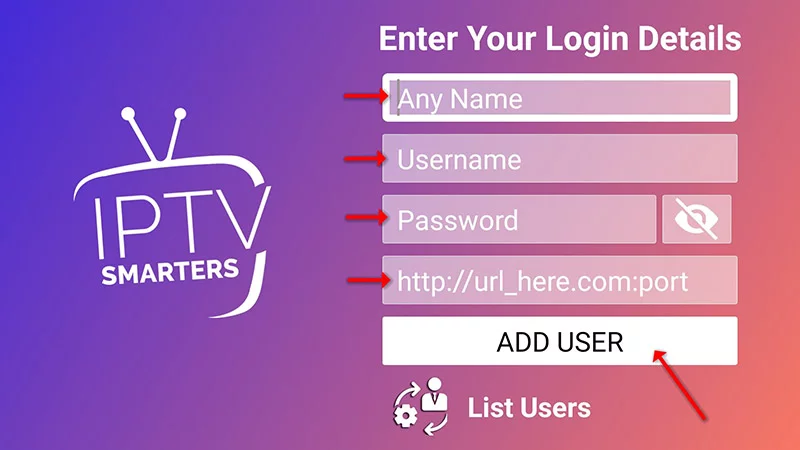
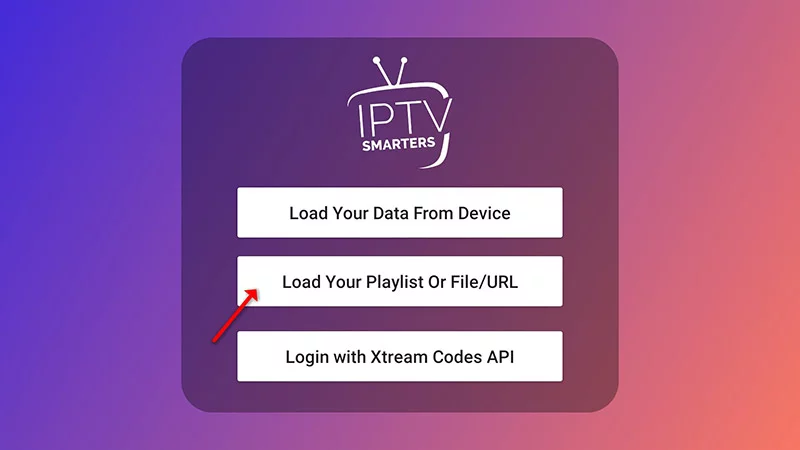
- Log in with Xtream Codes API. Open IPTV Smarters Pro and pick “Login with Xtream Codes API.” Enter any name for the playlist, then your username, password and the server URL exactly as they appear in your welcome message — every dot and character matters.
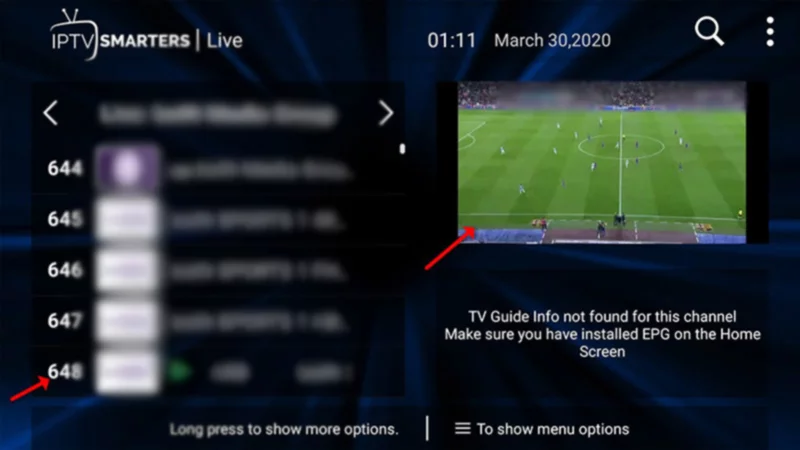
- Let the lineup load. The app downloads the channel list and VOD library on first login — with 22K channels and 80,000 movies and series, give it up to a minute. When the dashboard appears, choose Live TV and open any channel to confirm everything plays.
- Pin it to your home row. Long-press the home button, choose Apps, find IPTV Smarters Pro and select Move to front. Next time, your TV remote gets you from power-on to live TV in two clicks.
Get the best picture: five tips
- Use a wired connection when you can. Wi-Fi works, but an Ethernet cable removes the single biggest cause of buffering. If your device sits near the router, plug it in — 4K streams are noticeably more stable on a wired line.
- Set the decoder to Hardware. In IPTV Smarters Pro, open Settings → Player Settings and choose the Hardware decoder. Software decoding taxes the processor and stutters on 4K channels; hardware decoding hands the work to the chip built for it.
- Check your speed before blaming the stream. HD needs a steady 15 Mbps and 4K wants 25 Mbps or more. Run a speed test on the same device you stream with — a phone next to the router does not tell you what your TV in the next room actually gets.
- Keep one connection per screen. Your plan's connection count is the number of simultaneous streams. Watching on more screens than you paid for causes freezing for everyone — upgrade the plan instead of fighting it.
- Restart after big changes. After installing the app or changing decoder settings, fully restart the device once. It clears cached player state and solves a surprising share of first-day glitches.
Troubleshooting
- Downloader says the file can't be installed — The Install Unknown Apps toggle for Downloader is still off — revisit step 2, then download the APK again.
- Login fails with correct-looking details — Nine times out of ten it's a typo in the server URL — an extra space, a missing colon or port number. Copy it character by character from your welcome message.
- Channels buffer at peak hours — Switch the decoder to Hardware (Settings → Player Settings), and prefer the 4K stick over the basic model for 4K channels — the older sticks decode 1080p comfortably but struggle above it.
- The app disappeared after a Fire OS update — Amazon occasionally clears sideloaded apps' shortcuts. The app is usually still installed under Settings → Applications; if not, reinstall via Downloader — your login is remembered.
- Picture and audio drift out of sync — Open the player settings during playback and change the decoder, or restart the stream. Persistent sync issues on one channel only are a channel-side quirk — report it to support and we'll fix the source.
Common questions
Can’t find your answer? Message us on WhatsApp — we reply in minutes, 24/7.
Where do I get my login details?
Can I use the same account on several devices?
The channels list is empty after login — what now?
Do I need a VPN?
Ready to watch?
Plans from $15 with instant activation — or start with a free trial on this same device.