
Install Typhoon Labs IPTV on macOS
Watch Typhoon Labs IPTV on any Mac: IPTV Smarters for macOS or GSE Smart IPTV, logged in with Xtream Codes API — plus a 30-second VLC fallback for quick viewing.
A Mac makes a surprisingly good IPTV machine — MacBooks for portability, an iMac's display for picture quality, or a Mac mini quietly driving a TV. Two players cover macOS well: IPTV Smarters for Mac, which gives you the full TV-style dashboard, and GSE Smart IPTV, a long-standing player with deep playlist features. This guide sets up both, plus the instant VLC fallback.
As everywhere else, the Xtream Codes API login is the easy path: three fields, and the whole 22K-channel lineup plus the VOD library loads itself. Playlist-file juggling is never required unless you prefer it.
What you’ll need
- Any Mac on a recent macOS (Apple Silicon or Intel)
- Your Typhoon Labs username, password and server URL
- 15 Mbps internet for HD, 25 Mbps for 4K
- Five minutes
Step-by-step installation
- Install IPTV Smarters for Mac. Download the macOS build from the link in your welcome message and drag it to Applications. On first open, macOS may warn about an internet download — right-click the app, choose Open, and confirm; this one-time step is Gatekeeper's standard prompt for apps outside the Mac App Store.
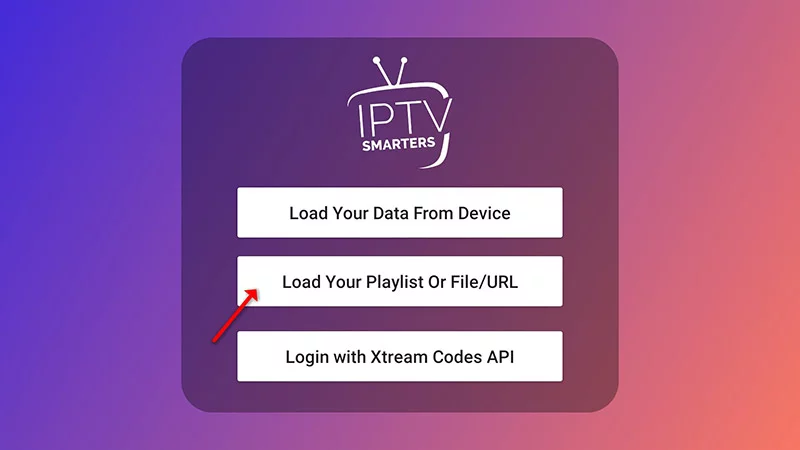
- Log in with Xtream Codes API. Choose “Login with Xtream Codes API,” name the playlist anything, and enter your username, password and server URL character-perfect. The app syncs the full lineup on first login — under a minute on most connections.
- Alternative: GSE Smart IPTV. If you prefer GSE, install it from the Mac App Store, then add a remote playlist: paste your M3U link, and add the EPG URL from your welcome message for programme data. GSE's strength is fine-grained control — per-channel buffers, custom groups, multiple playlists.
- Tune playback. In either player, select the hardware decoder in settings. On MacBooks this keeps fans silent through 4K; on Apple Silicon it sips battery. Full-screen playback + hiding the dock turns any Mac into a clean TV.
- The VLC 30-second fallback. VLC for Mac opens your M3U instantly: File → Open Network, paste the link, done. It's the quickest way to a specific match in a corner window while you work — treat the link as a password and don't share it.
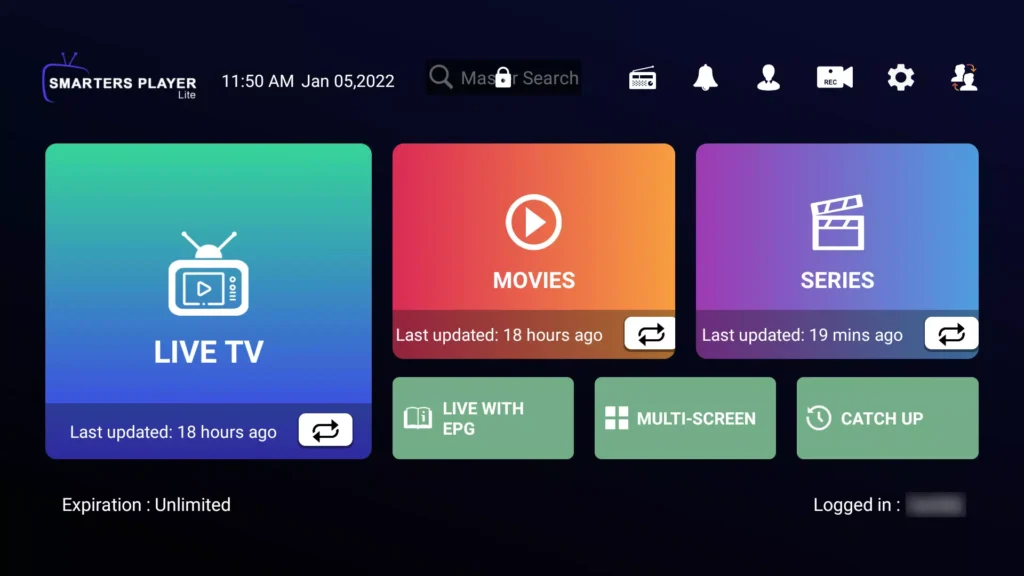
- Second-screen habits. Picture-in-picture keeps a stream floating over other work. And if a big match deserves the living-room TV, AirPlay the window to an Apple TV — though the native tvOS player remains the smoother option for full evenings.
Get the best picture: five tips
- Use a wired connection when you can. Wi-Fi works, but an Ethernet cable removes the single biggest cause of buffering. If your device sits near the router, plug it in — 4K streams are noticeably more stable on a wired line.
- Set the decoder to Hardware. In IPTV Smarters Pro, open Settings → Player Settings and choose the Hardware decoder. Software decoding taxes the processor and stutters on 4K channels; hardware decoding hands the work to the chip built for it.
- Check your speed before blaming the stream. HD needs a steady 15 Mbps and 4K wants 25 Mbps or more. Run a speed test on the same device you stream with — a phone next to the router does not tell you what your TV in the next room actually gets.
- Keep one connection per screen. Your plan's connection count is the number of simultaneous streams. Watching on more screens than you paid for causes freezing for everyone — upgrade the plan instead of fighting it.
- Restart after big changes. After installing the app or changing decoder settings, fully restart the device once. It clears cached player state and solves a surprising share of first-day glitches.
Troubleshooting
- macOS refuses to open the app — Right-click → Open (instead of double-click) the first time, or approve it under System Settings → Privacy & Security. Gatekeeper only asks once.
- Streams lag on an older Intel Mac — Close browser tabs streaming video ads, switch the player to hardware decoding, and prefer HD feeds — 2013-2015 Macs decode 1080p happily but 4K HEVC taxes them.
- GSE loads channels but no guide data — Add the EPG URL separately in GSE's EPG settings, then refresh. GSE treats guide data as its own source rather than bundling it with the playlist.
- Audio only, black picture in VLC — Switch VLC's video output (Preferences → Video → Output) or update VLC — old builds predate some current stream encodings.
- The Mac sleeps mid-match — System Settings → Displays → Advanced: prevent sleep while the display is on power, or just bump the sleep timer — players don't always register as 'activity' to macOS.
Common questions
Can’t find your answer? Message us on WhatsApp — we reply in minutes, 24/7.
Where do I get my login details?
Can I use the same account on several devices?
The channels list is empty after login — what now?
Do I need a VPN?
Ready to watch?
Plans from $15 with instant activation — or start with a free trial on this same device.