
Install Typhoon Labs IPTV on Windows
Watch Typhoon Labs IPTV on a Windows PC or laptop: install IPTV Smarters Pro for desktop, log in with Xtream Codes API, and stream 22K channels — VLC fallback included.
A Windows PC or laptop makes a great IPTV screen — for a home office second monitor, a student dorm, or travel. Typhoon Labs works on Windows two ways: the full IPTV Smarters Pro desktop app with its TV-style interface, or the lightweight VLC route using your M3U link. This guide covers both, starting with the one we recommend.
The Smarters desktop app mirrors the TV experience: a proper channel guide, categories, favourites, VOD library and catch-up, all navigable by mouse or keyboard. VLC, by contrast, is instant and minimal — perfect when you just want a specific channel open in a window while you work.
What you’ll need
- A PC or laptop on Windows 10 or 11
- Your Typhoon Labs username, password and server URL (and the M3U link for the VLC route)
- 15 Mbps internet for HD, 25 Mbps for 4K
- Five minutes
Step-by-step installation
- Download IPTV Smarters Pro for desktop. Get the Windows installer from the link in your welcome message or from our support team. Run the installer like any Windows program — if SmartScreen interjects, choose More info → Run anyway; the app is safe and this is Windows being cautious about lesser-known publishers.
- Log in with Xtream Codes API. Launch the app and choose “Login with Xtream Codes API.” Enter a playlist name of your choice, your username, password, and the server URL exactly as written in your welcome message.
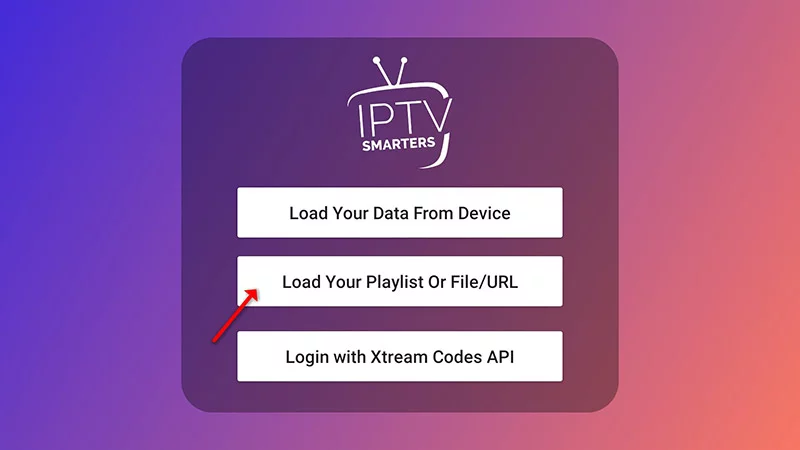
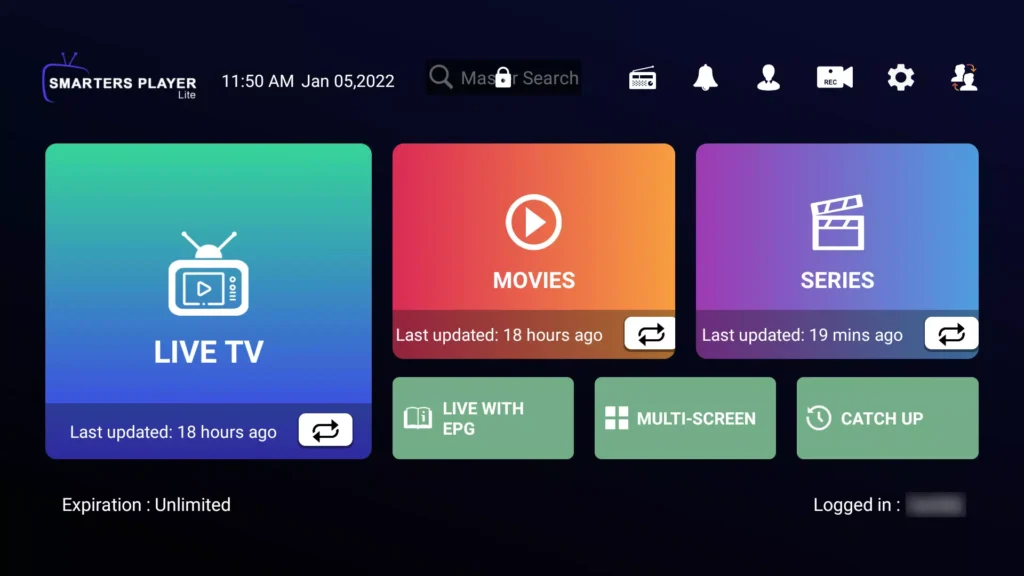
- Let the library sync. The first sync downloads the full channel list and the 80,000-title VOD catalogue — under a minute on most connections. You land on a dashboard with Live TV, Movies and Series sections.
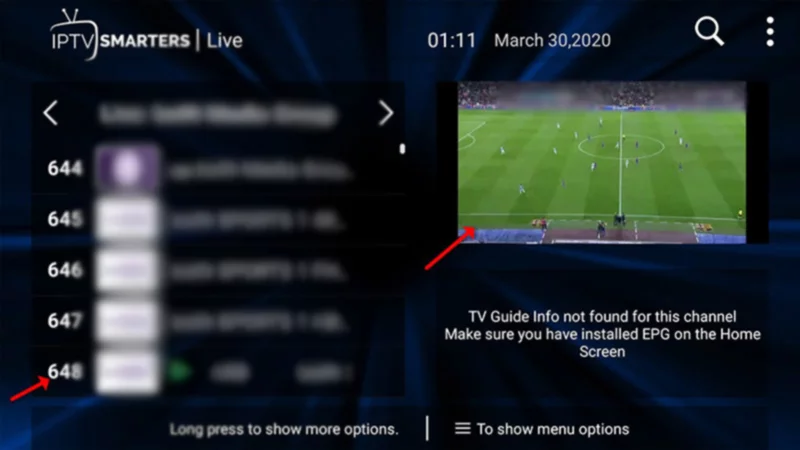
- Tune the player settings. Open Settings → Player Settings and pick the Hardware decoder. On laptops this also stops the fans spinning up during 4K playback. Full-screen with a double-click; ESC returns to the guide.
- Optional: the VLC quick route. Install VLC from videolan.org, press Ctrl+N (Open Network Stream), and paste your M3U playlist link. VLC loads the lineup as a playlist — basic, but running in twenty seconds. Keep the link private; it is your login in URL form.
- Make it feel like TV. In Smarters, star your favourite channels and use the EPG view for a cable-style grid. Windows' Focus Assist is worth enabling during matches — notification pop-ups over the 90th minute get old fast.
Get the best picture: five tips
- Use a wired connection when you can. Wi-Fi works, but an Ethernet cable removes the single biggest cause of buffering. If your device sits near the router, plug it in — 4K streams are noticeably more stable on a wired line.
- Set the decoder to Hardware. In IPTV Smarters Pro, open Settings → Player Settings and choose the Hardware decoder. Software decoding taxes the processor and stutters on 4K channels; hardware decoding hands the work to the chip built for it.
- Check your speed before blaming the stream. HD needs a steady 15 Mbps and 4K wants 25 Mbps or more. Run a speed test on the same device you stream with — a phone next to the router does not tell you what your TV in the next room actually gets.
- Keep one connection per screen. Your plan's connection count is the number of simultaneous streams. Watching on more screens than you paid for causes freezing for everyone — upgrade the plan instead of fighting it.
- Restart after big changes. After installing the app or changing decoder settings, fully restart the device once. It clears cached player state and solves a surprising share of first-day glitches.
Troubleshooting
- SmartScreen blocks the installer — Click More info, then Run anyway. Windows flags any installer without a big-publisher certificate; the file from your welcome message is the official build.
- Streams stutter on a capable PC — Switch the decoder in player settings, and check Windows' power plan — laptops on Battery Saver throttle video decoding. Plugged in + Balanced profile fixes it.
- VLC opens the playlist but channels take ages to start — Raise VLC's network caching: Tools → Preferences → Show all → Input/Codecs → Network caching to ~2000 ms. VLC's defaults are tuned for local files, not live streams.
- Audio works, screen is black — Update the graphics driver, or in VLC switch the video output module (Preferences → Video). On Smarters, toggling the decoder does the same job.
- The app won't start after a Windows update — Reinstall from the same installer — updates occasionally break the runtime it bundles. Your login is preserved.
Common questions
Can’t find your answer? Message us on WhatsApp — we reply in minutes, 24/7.
Where do I get my login details?
Can I use the same account on several devices?
The channels list is empty after login — what now?
Do I need a VPN?
Ready to watch?
Plans from $15 with instant activation — or start with a free trial on this same device.